Google Home Setup for Music Streaming: A Comprehensive Guide
Discover how to enhance your music experience with Google Home! Whether you're a music enthusiast or just looking to add some flavor to your daily routine, this guide will walk you through the process of setting up Google Home for music streaming, creating playlists, activating multi-room audio, and controlling playback with voice commands.
Setting Up Music Streaming Services
Google Home is compatible with multiple music streaming services, including Spotify, Apple Music, and YouTube Music. To set up music streaming services on your Google Home device, follow these steps:
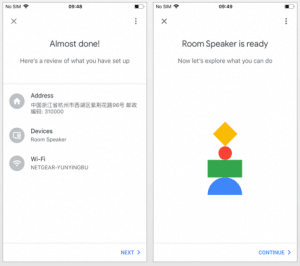
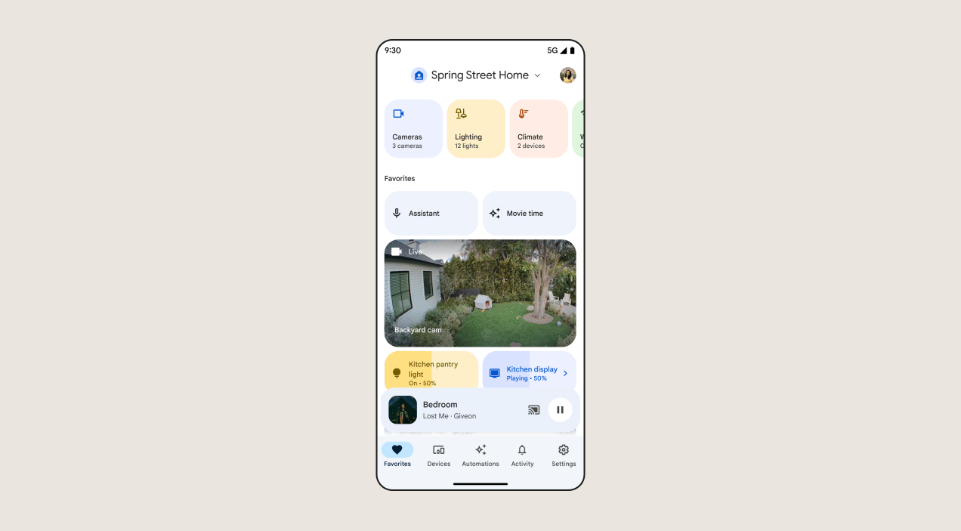
- Open the Google Home app on your mobile device.
- Tap on the account icon at the top right corner of the screen.
- Tap on "Music" and then select the music streaming service you want to link.
- Follow the in-app instructions to log in to your music streaming service account.
- Once linked, you can control playback, create playlists, and access various music features using voice commands or through the Google Home app.
Activating Multi-Room Audio
Google Home allows you to set up multiple speakers and create a seamless multi-room audio experience. To activate multi-room audio, follow these steps:
- Make sure all your Google Home devices are connected to the same Wi-Fi network.
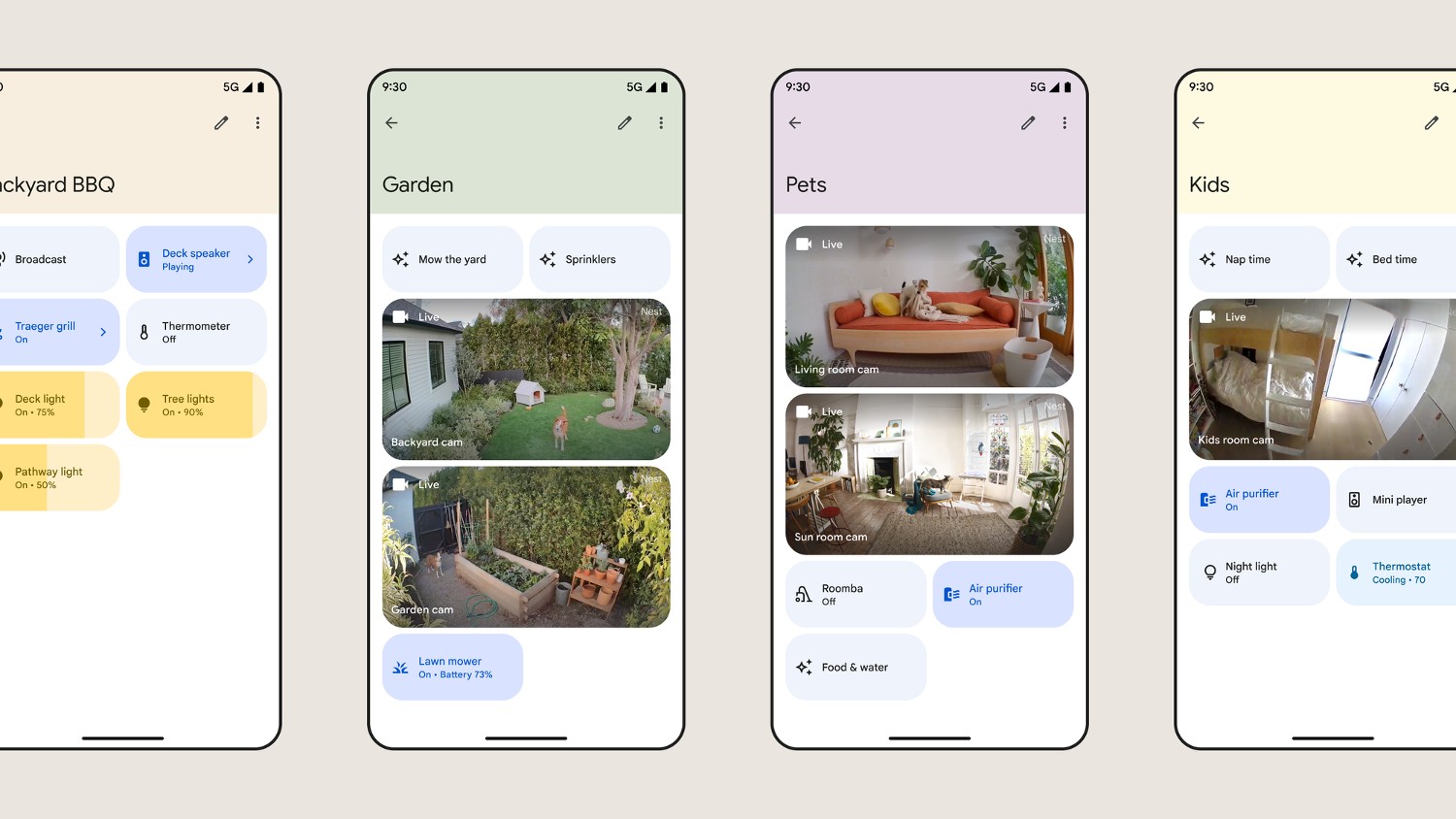
- Open the Google Home app and select the devices you want to group together.
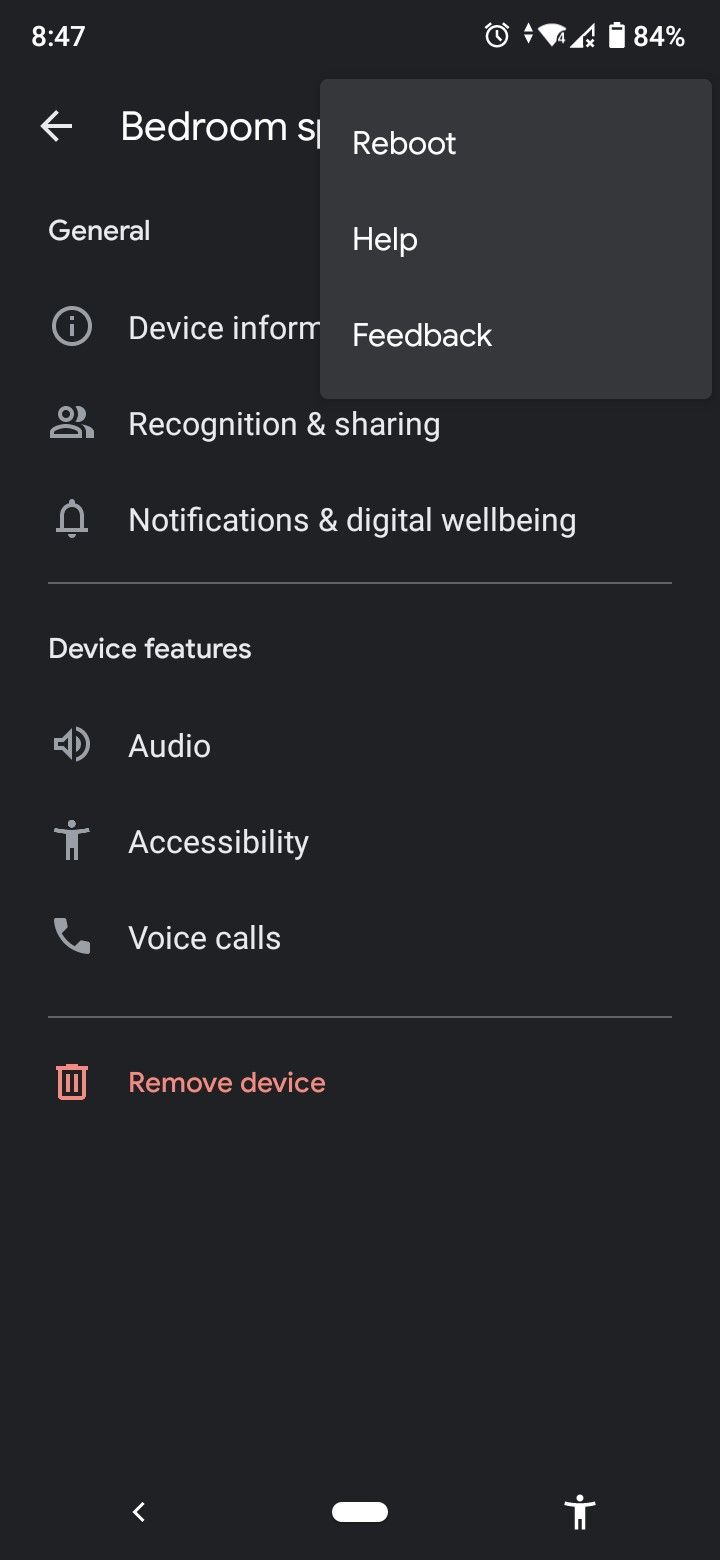
- Tap on the three dots at the top right corner of the screen and select "Group devices".
- Choose a name for your group and select the devices you want to include.
- Once grouped, you can control playback and adjust volumes across all devices using voice commands or through the Google Home app.
Controlling Music Playback with Voice Commands
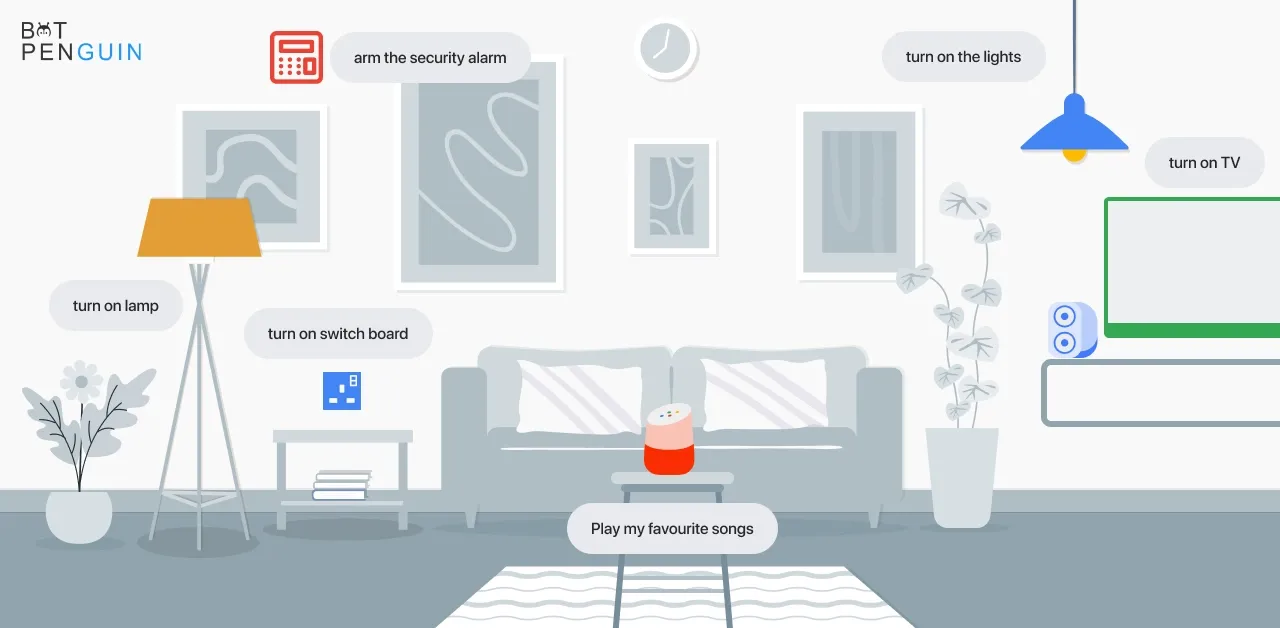
Google Home allows you to control music playback using voice commands. Here are some common voice commands you can use:
- "Play" - starts playing music from your default music streaming service.
- "Pause" - pauses music playback.
- "Stop" - stops music playback.
- "Next" - skips to the next song in your playlist.
- "Previous" - goes back to the previous song in your playlist.
- "Volume up" or "Volume down" - adjusts the volume of your music playback.
Troubleshooting Common Playback Issues
Despite the ease of use of Google Home, you may encounter playback issues from time to time. Here are some common playback issues and their solutions:
- Music not playing: Check that your Google Home device is connected to the same Wi-Fi network as your mobile device or tablet. Ensure that your music streaming service account is linked to your Google Home device.
- Audio delay: Check that your Google Home device is configured correctly and that there are no firmware updates available.
- Volume issues: Check that your Google Home device is not muted, and ensure that the volume is not turned down.
Linking Multiple Music Streaming Services
With Google Home, you can link multiple music streaming services to your device. This allows you to access music from various services and switch between them seamlessly. To link multiple music streaming services, follow these steps:
- Open the Google Home app on your mobile device.
- Tap on the account icon at the top right corner of the screen.
- Tap on "Music" and then select the music streaming service you want to link.
- Follow the in-app instructions to log in to your music streaming service account.
- Repeat the process for each music streaming service you want to link.
Default Music Streaming Service
By default, Google Home will use the first music streaming service you linked to your device. However, you can change the default music streaming service at any time by following these steps:
- Open the Google Home app on your mobile device.
- Tap on the account icon at the top right corner of the screen.
- Tap on "Music" and then select the music streaming service you want to set as default.
- Tap on "Set as default" to confirm the change.