How to Reset Wi-Fi Router Settings: A Step-by-Step Guide
Are you struggling with slow or unstable Wi-Fi? Do you want to restore speed, clear glitches, and avoid unnecessary tech-support calls? Look no further! In this article, we'll show you how to reset your Wi-Fi router settings safely and effectively.
Why Reset Your Wi-Fi Router Settings?
Resetting your Wi-Fi router settings can help resolve various issues, such as slow internet speeds, connectivity problems, and security concerns. It's a good idea to reset your router periodically to keep your network running smoothly and securely.
What Happens When You Reset Your Wi-Fi Router Settings?
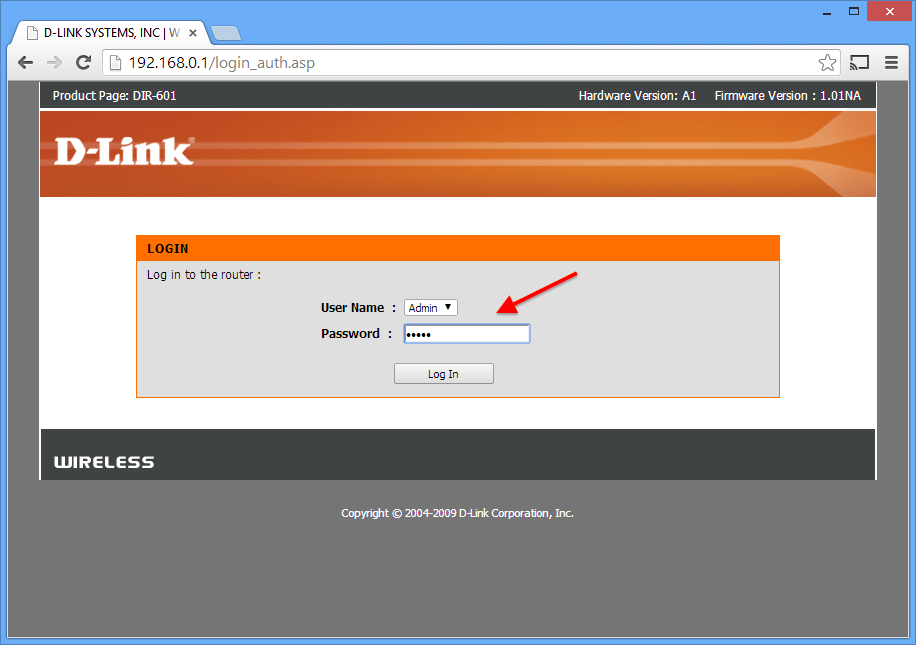
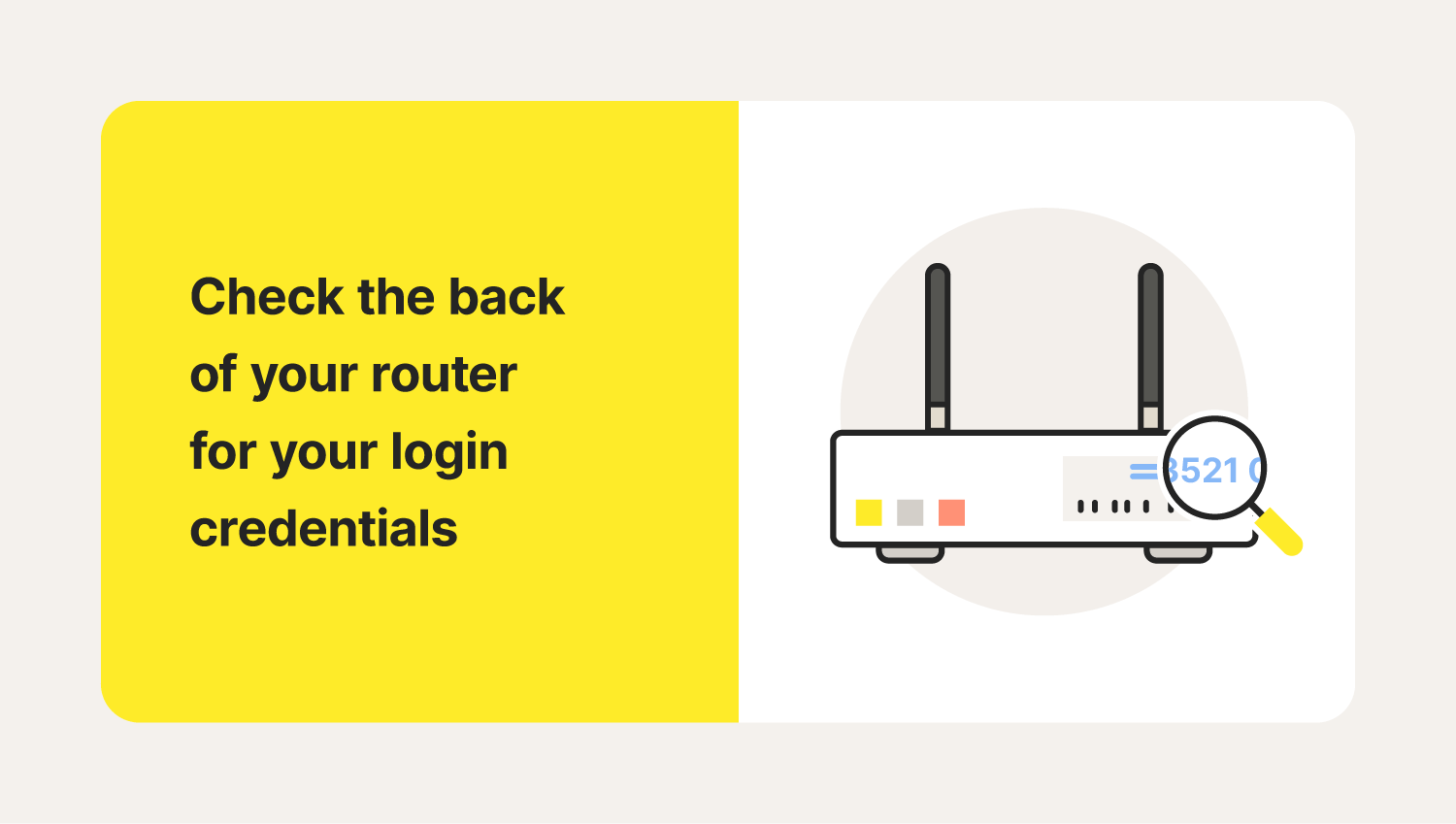
When you reset your Wi-Fi router settings, you're essentially restoring the device to its original, out-of-the-box state. This wipes all personalized settings, including your Wi-Fi network name (SSID), password, router login credentials, and any custom configurations like port forwarding, static IPs, or parental controls.
How to Reset Your Wi-Fi Router Settings
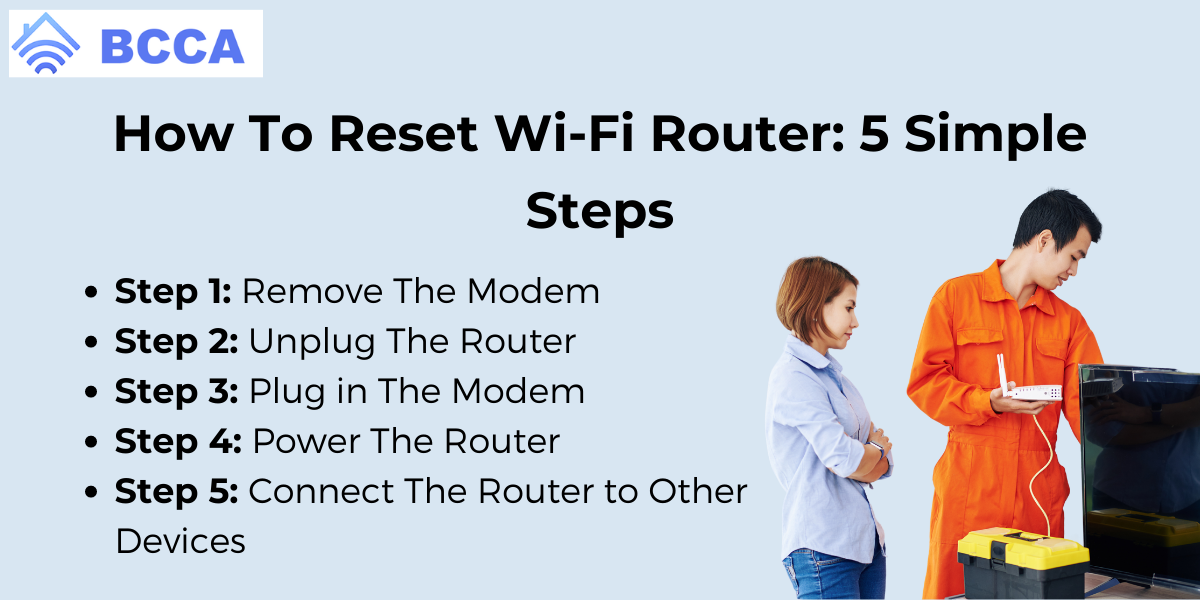
There are three types of resets you can perform on your Wi-Fi router: soft reset, reboot, and full factory reset. Here's how to do each:
Soft Reset
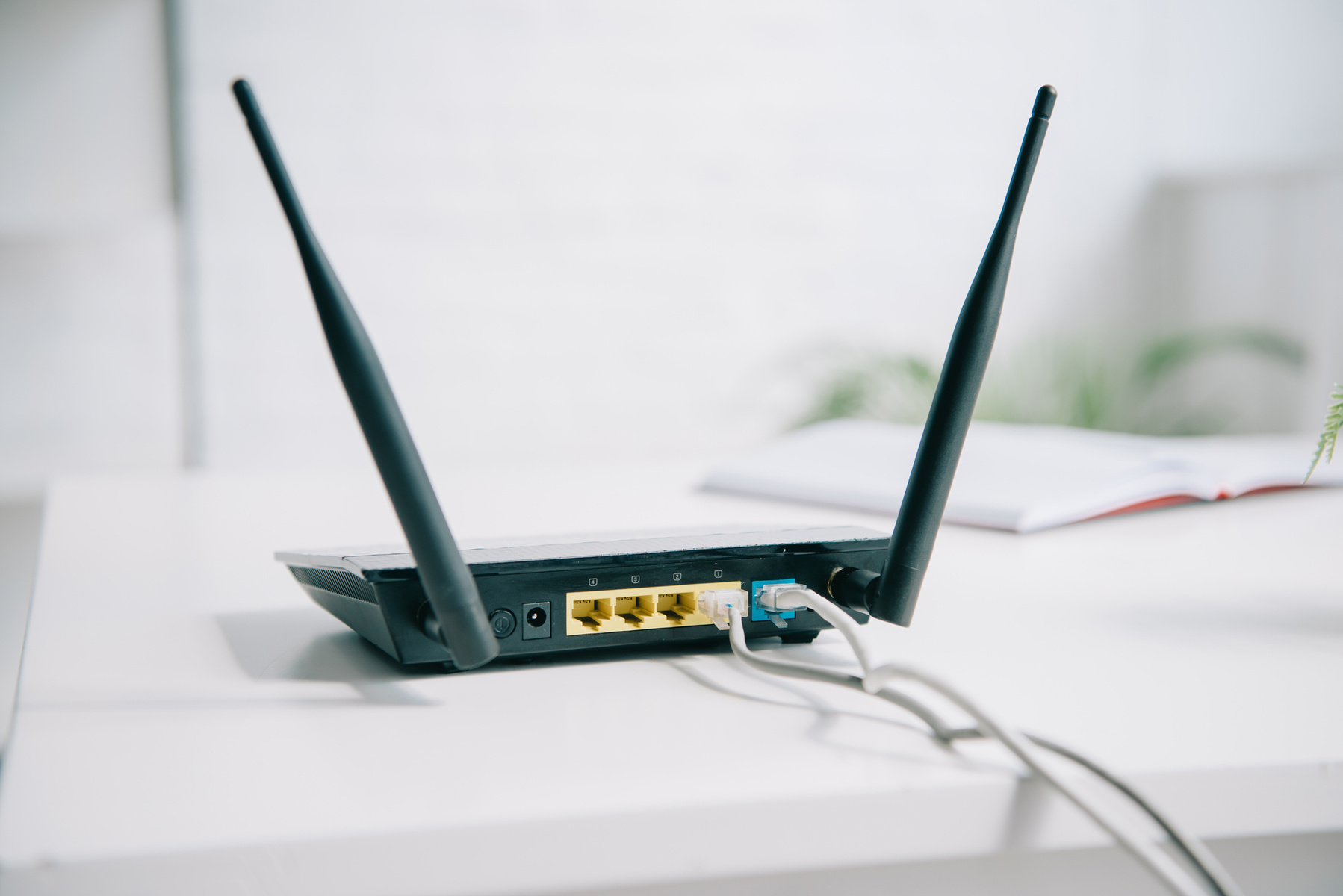
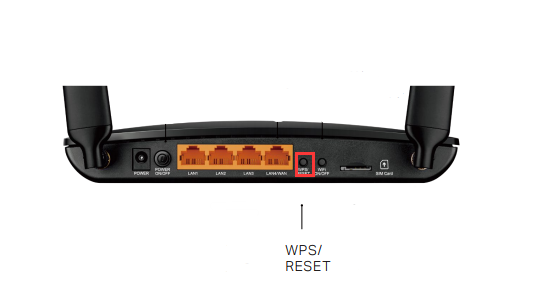
- Locate the reset button on your router, usually found at the back or bottom.
- Use a paper clip or pin to press and hold the reset button for 10-15 seconds.
- Release the button and wait for the router to restart.
A soft reset will restart your router and may resolve minor issues, but it won't change any settings.
Reboot

- Unplug the power cord from the back of the router.
- Wait for 30 seconds to allow any residual power to drain.
- Plug the power cord back in and wait for the router to restart.
A reboot will shut down your router and start it back up, which can resolve issues like slow speeds or connectivity problems.
Full Factory Reset
- Locate the small, hidden button on your router, usually found at the back or bottom.
- Use a paper clip or pin to press and hold the reset button for 30 seconds to 1 minute.
- Release the button and wait for the router to restart.
A full factory reset will wipe all settings, including your Wi-Fi network name, password, and login credentials. This is usually a last resort, but it can help resolve severe issues or security concerns.
Post-Reset Security Steps
After resetting your Wi-Fi router settings, it's essential to take some post-reset security steps to ensure your network remains secure:
- Change your Wi-Fi network name (SSID) and password to something unique and strong.
- Update your router's firmware to the latest version.
- Set up guest network access to isolate visitors from your main network.
- Enable WPA2 encryption and set up a strong password.
- Configure parental controls to restrict access to certain websites or content.
Conclusion
Resetting your Wi-Fi router settings can be a powerful tool to resolve issues, improve security, and optimize your network performance. By following the steps outlined in this article, you'll be able to reset your router safely and effectively. Remember to take post-reset security steps to ensure your network remains secure and protected.





![[Wireless Router] How do I enter my ASUS router's setting page using ...](https://www.lifewire.com/thmb/OdRsC28cX9Lx-obZRh3IAbGWfx8=/1500x0/filters:no_upscale():max_bytes(150000):strip_icc()/3-5abcf226fa6bcc0036668782.png "[Wireless Router] How do I enter my ASUS router's setting page using ...")