How to Set Up Gmail Account: A Step-by-Step Guide
Creating a new Gmail account is a straightforward process that can be completed in just a few minutes. In this article, we'll walk you through the steps on how to set up a Gmail account, including the types of accounts you can create, the necessary steps to follow, and some tips to help you secure your account.
Why Create a Gmail Account?
By creating a free Gmail account, you get access to all of Google's products, including cloud storage, an email service, an online office suite, and more. This makes it an ideal choice for personal, professional, or business use.
Preparation Before Setting Up a Gmail Account
Before you set up a new Gmail account, make sure to sign out of your current Gmail account. If you're using a device that's already signed in to your Google account, you may need to sign out of that account first. Additionally, ensure that you have a valid phone number or email address to use as a recovery contact.
Creating a Gmail Account
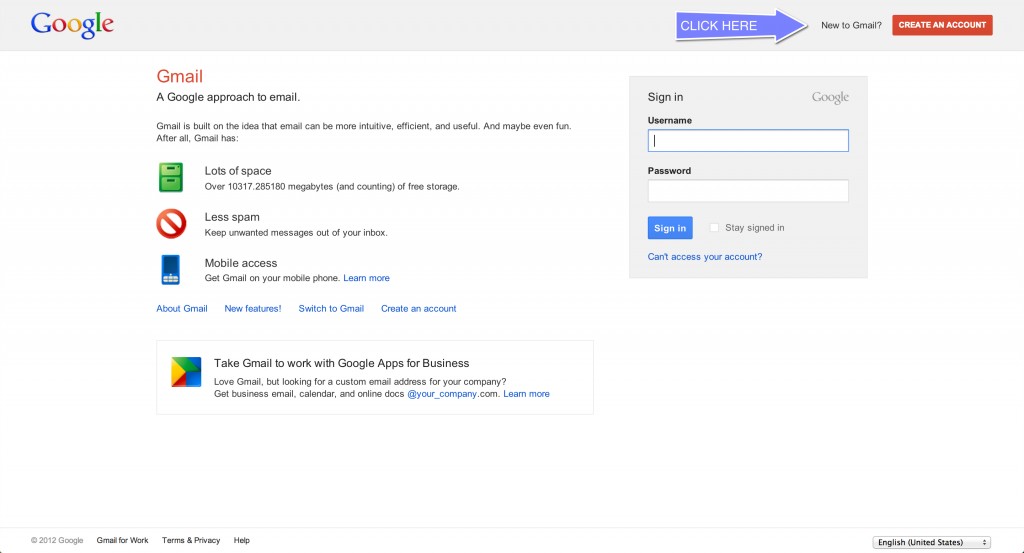
- Go to the Google Account sign-in page from your device.
- Click on the "Create account" button.
- In the dropdown, select the type of account you want to create: personal use, child, work, or business.
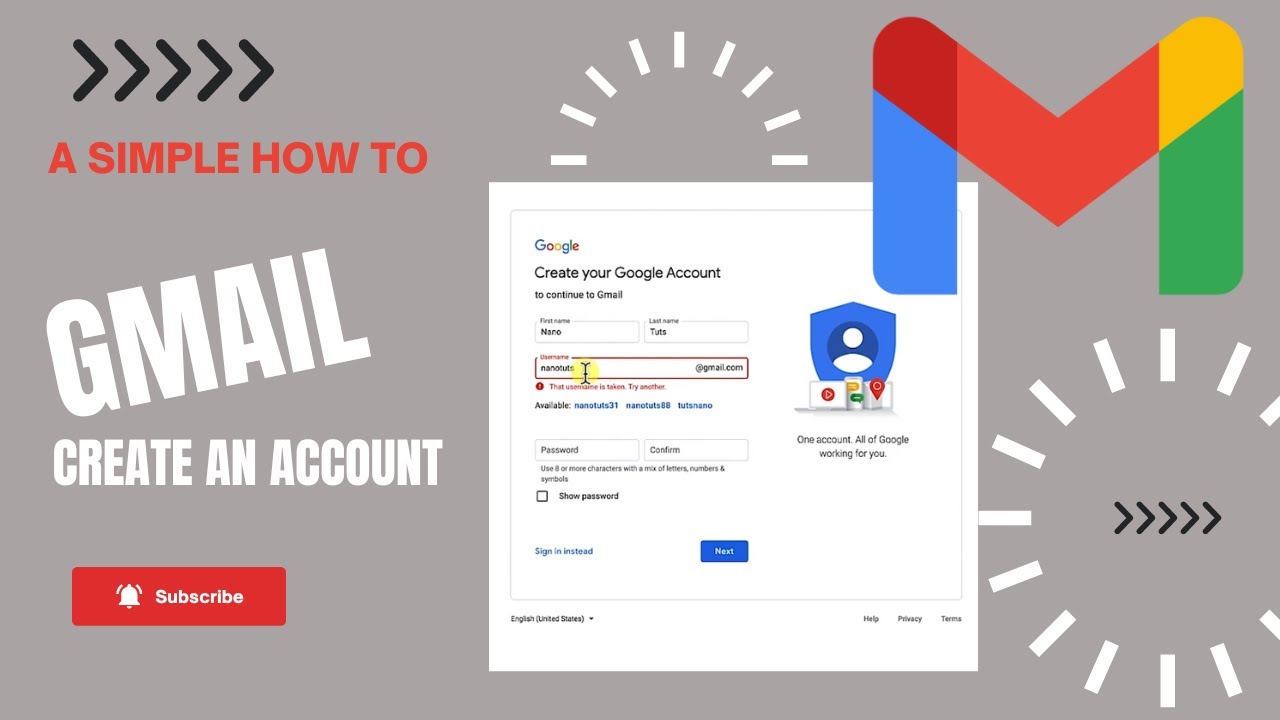
- Follow the on-screen instructions to set up your account, including choosing a username and password, entering your recovery contact information, and configuring your account settings.
Types of Gmail Accounts
There are several types of Gmail accounts you can create, including:
- Personal use: for personal email and communication.
- Child: for minors, with parental controls and monitoring.
- Work or business: for professional use, with additional security features and controls.
Setting Up Two-Factor Authentication
Two-factor authentication (2FA) adds an extra layer of security to your account by requiring a verification code sent to your phone or email address in addition to your password. To set up 2FA on your Gmail account, follow these steps:
- Go to your Google Account settings.
- Click on the "Security" tab.
- Scroll down to the "Signing in to Google" section.
- Click on the "2-Step Verification" option.
- Follow the on-screen instructions to set up 2FA.
Securing Your Gmail Account

Here are some additional tips to help you secure your Gmail account:
- Use a strong and unique password.
- Enable two-factor authentication.
- Use a password manager to store your login credentials.
- Keep your account up to date by regularly reviewing and updating your account settings.
Common Issues and Solutions
If you encounter any issues during the setup process, refer to Google's support articles or contact their support team for assistance. Some common issues include:
- Email not sending or receiving.
- Account not syncing.
- Two-factor authentication not working.
For these issues and more, refer to the troubleshooting section in Google's support center or contact their support team for help.
Conclusion
Setting up a Gmail account is a straightforward process that can be completed in just a few minutes. By following the steps outlined in this article, you can create a new Gmail account, set up two-factor authentication, and secure your account with additional tips and best practices.
Whether you're creating a new account for personal or professional use, this guide will walk you through the necessary steps to get started with Gmail.
With Gmail, you get access to all of Google's products, including cloud storage, an email service, an online office suite, and more. This makes it an ideal choice for personal, professional, or business use.
Additional Resources
For more information on setting up a Gmail account, including troubleshooting and security tips, refer to the following resources:
- Google's support center: https://support.google.com
- Google's Gmail support page: https://support.google.com/mail