Roku Media Player Setup: A Comprehensive Guide for Enhanced Streaming Experience
With the vast array of digital entertainment options available, setting up a Roku media player can seem like a daunting task. However, with this step-by-step guide, you can easily install and configure your Roku media player to access a world of streaming content, music, and photos.
Introduction to Roku Media Player
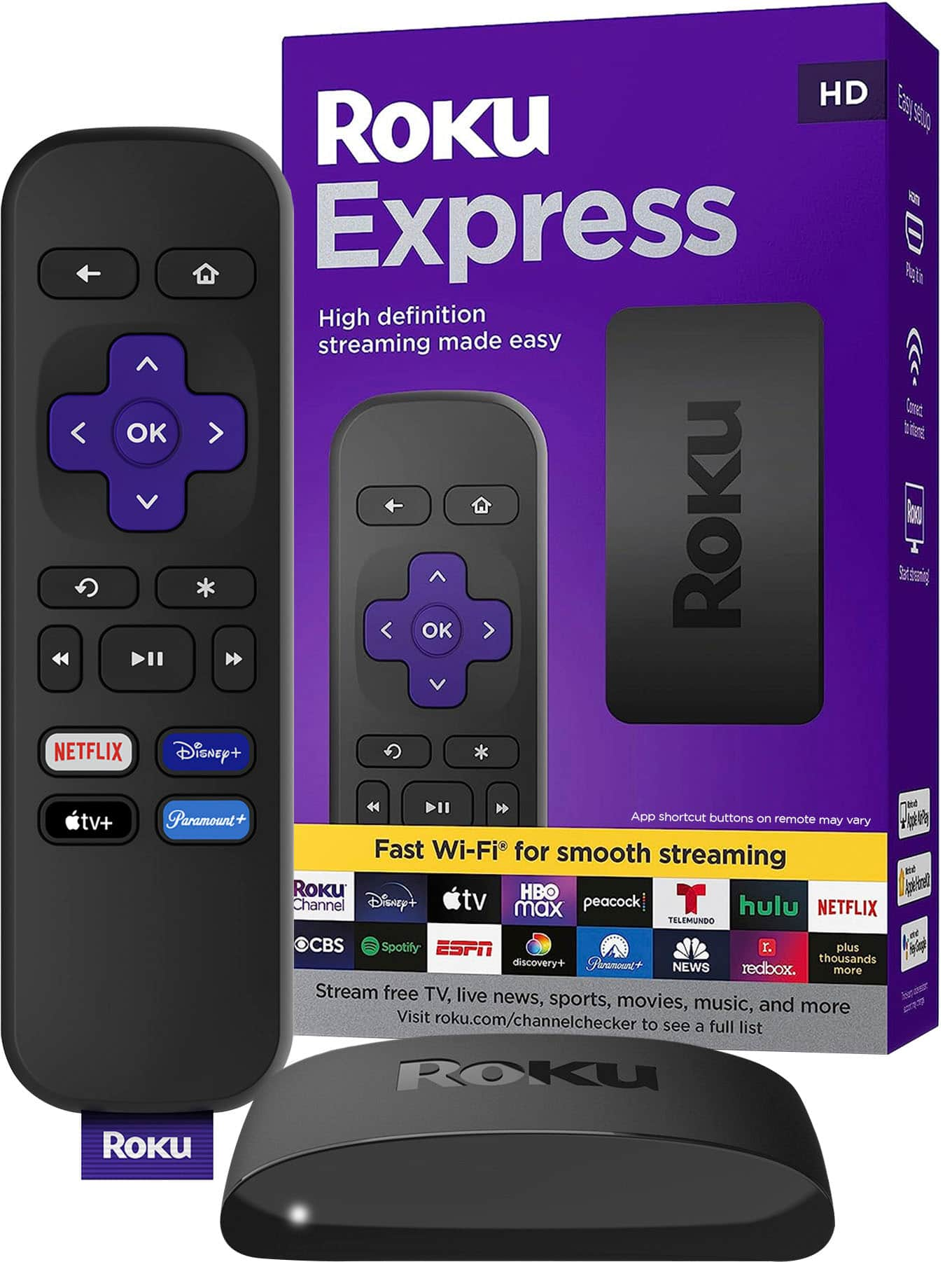
The Roku media player is a sleek and user-friendly device designed to bring your favorite TV shows, movies, and streaming content directly to your living room. Whether you're a casual viewer or a hardcore binge-watcher, a Roku media player provides an unparalleled streaming experience. With a range of devices to choose from, including the Roku Express, Ultra, and Streaming Stick, you can pick the one that best suits your needs.
Setting Up Your Roku Media Player
Before you can start streaming your favorite content, you need to set up your Roku media player. Here's a step-by-step guide to help you get started:
- Connect your Roku media player to the TV: You'll need to plug one end of the HDMI cable into the Roku player and the other end into an available HDMI port on the television. Make a note of the port number, as it's often labeled as HDMI 1, HDMI 2, or HDMI 3.
- Turn on the TV: Ensure the TV is turned on and the input is set to the correct HDMI port where the Roku media player is connected.
- Update the system software: Go to the Roku home screen and navigate to the settings menu. Select "System" and then "System Update" to ensure your device has the latest software.
- Set up your Wi-Fi connection: Connect to your home Wi-Fi network using the on-screen prompts. This will enable you to access your favorite streaming services and content.
- Activate your Roku account: Link your Roku account to your profile using your computer or smartphone. Follow the on-screen instructions to complete the activation process.
Connecting to a Media Server or USB Drive

One of the unique features of a Roku media player is its ability to connect to a network-attached DLNA media server or a USB drive installed in your device. This allows you to access a variety of video, music, and photo formats from a single location. Here's how to connect to a media server or USB drive:
- Launch the Roku media player: From the Roku home screen, navigate to the Media Player and select "Add Channel" to download the Roku Media Player.
- Connect to the media server or USB drive: You'll need to follow the on-screen instructions to connect to your media server or USB drive. This may involve entering the MAC address or connecting the USB drive to your Roku device.
- View media content: Once connected, you can view your media content, including videos, music, and photos, from the Media Player.
Exploring Additional Features
As you explore your Roku media player, you may discover additional features and settings that enhance your streaming experience. Some of these features include:
- Screen mirroring: Allows you to mirror your smartphone or tablet screen on your TV using the Roku mobile app.
- Universal search: Enables you to search across multiple streaming services, including Netflix, Hulu, and Amazon Prime Video.
- Precision control: Provides additional control options for navigating through your media content, including gestures and voice commands.
Conclusion
With this in-depth guide, you've mastered the art of Roku media player setup and configuration. Whether you're new to streaming devices or upgrading to a new Roku model, you can rest assured that you'll have a smooth and enjoyable viewing experience. Visit the official Roku support site for additional resources, including how-to articles and videos, to further enhance your streaming experience.