How to Protect a Folder with Password: A Comprehensive Guide
If you're looking for a way to safeguard your sensitive files and folders, password-protecting them is an excellent option. In this article, we'll explore the various methods to protect a folder with a password, whether you're using Windows, macOS, or a third-party app.
Using Built-in Encryption Programs
Windows 10 and 11 Pro, Enterprise, or Education Edition users can utilize their computer's built-in encryption program to password-protect folders. This feature converts files into a secure, unreadable format using encryption algorithms, making it virtually impossible for unauthorized individuals to access them.
To use this feature, follow these steps:
- Go to File Explorer and select the folder you want to protect.
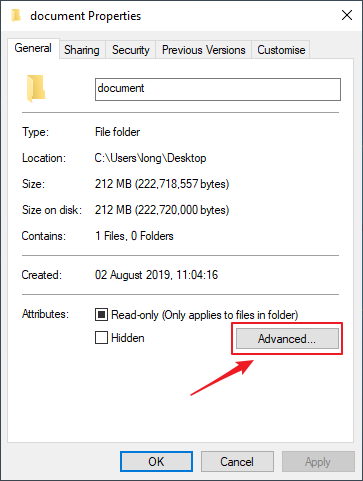
- Right-click on the folder and select "Properties."
- Click on the "General" tab and then click on the "Advanced" button.
- Check the box next to "Encrypt contents to secure data" and click "OK."
Using Third-Party Apps
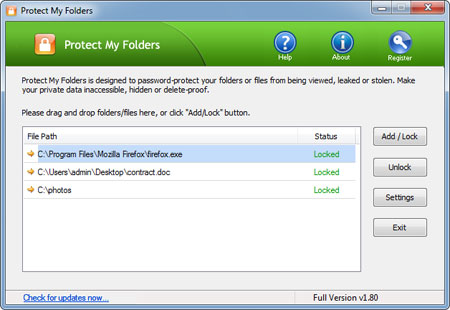
For those who don't have access to built-in encryption programs or prefer a more user-friendly interface, third-party apps are an excellent alternative. Some popular options include:
- AES Crypt: A free, open-source encryption tool that supports Windows, macOS, and Linux.
- 7-Zip: A popular file archiver that also offers password-protection features.
- BitLocker: A full-disk encryption tool that comes with Windows 10 and 11.
Protecting a Folder in Windows 11 or Windows 10
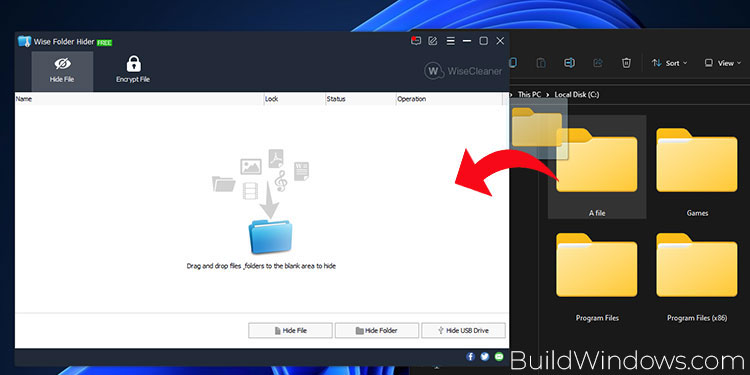
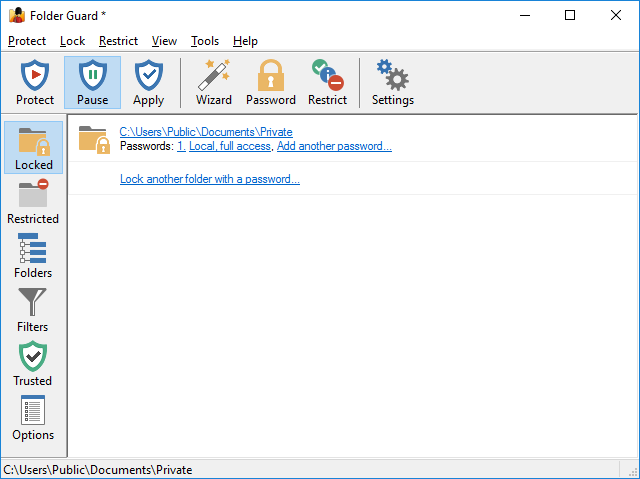
While Windows 11 and 10 have built-in encryption programs, they may not be enough to provide the level of security you need. In such cases, a file encryption software is necessary to password-protect a folder. Here's how to do it:
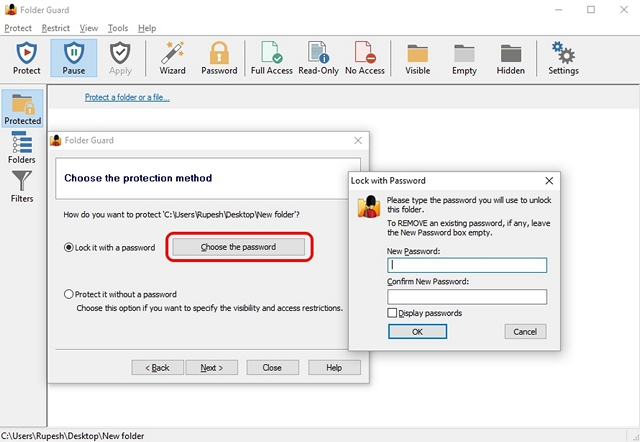
- Download and install a reputable file encryption software.
- Launch the software and select the folder you want to protect.
- Choose the encryption method and password you want to use.
- Click "Encrypt" to begin the process.

Unlocking a Protected Folder
When you've finished protecting a folder, you may want to unlock it to access the files inside. To do this, follow these steps:
- Launch the file encryption software you used to protect the folder.
- Enter the password you set earlier.
- Click "Decrypt" to unlock the folder.
Common Questions and Answers
Q: Can I password-protect a folder on macOS?
A: Yes, macOS has a built-in encryption feature called FileVault that allows you to password-protect a folder.
Q: How do I remove a password from a protected folder?
A: To remove a password from a protected folder, launch the file encryption software you used to protect it, enter the password, and click "Decrypt."
Conclusion
Password-protecting a folder is a simple and effective way to safeguard your sensitive files and folders. By using built-in encryption programs or third-party apps, you can ensure that only authorized individuals have access to your files. Remember to choose a strong password and store it securely to prevent unauthorized access.